 Fluent
Getting Started
Fluent helps you build a personal dictionary. It uses spaced repetition to help you remember the terms.
Fluent is an opinionated app. I built it the way I like to learn:
- You learn every term in both directions. First you translate the term. Then you translate the translation back.
- You always type the answer. You never only flip a card.
Typing is harder, but it helps me remember words much better.
Fluent keeps your dictionary on your Mac. It syncs your dictionary with iCloud when iCloud is available.
First Launch
Fluent helps you create your first language. Choose:
- A name.
- The language you want to learn.
- The language you want to learn against (the language you speak).
Create or Edit a Language
In Fluent, each language is a deck. You can make more than one deck for the same language.
- Open Fluent › Settings. You can also press ⌘ + ,.
- Select Languages.
- Create a deck, or select a deck to edit it.
You can rename a deck. You can change its languages. You can also change its optional fields.
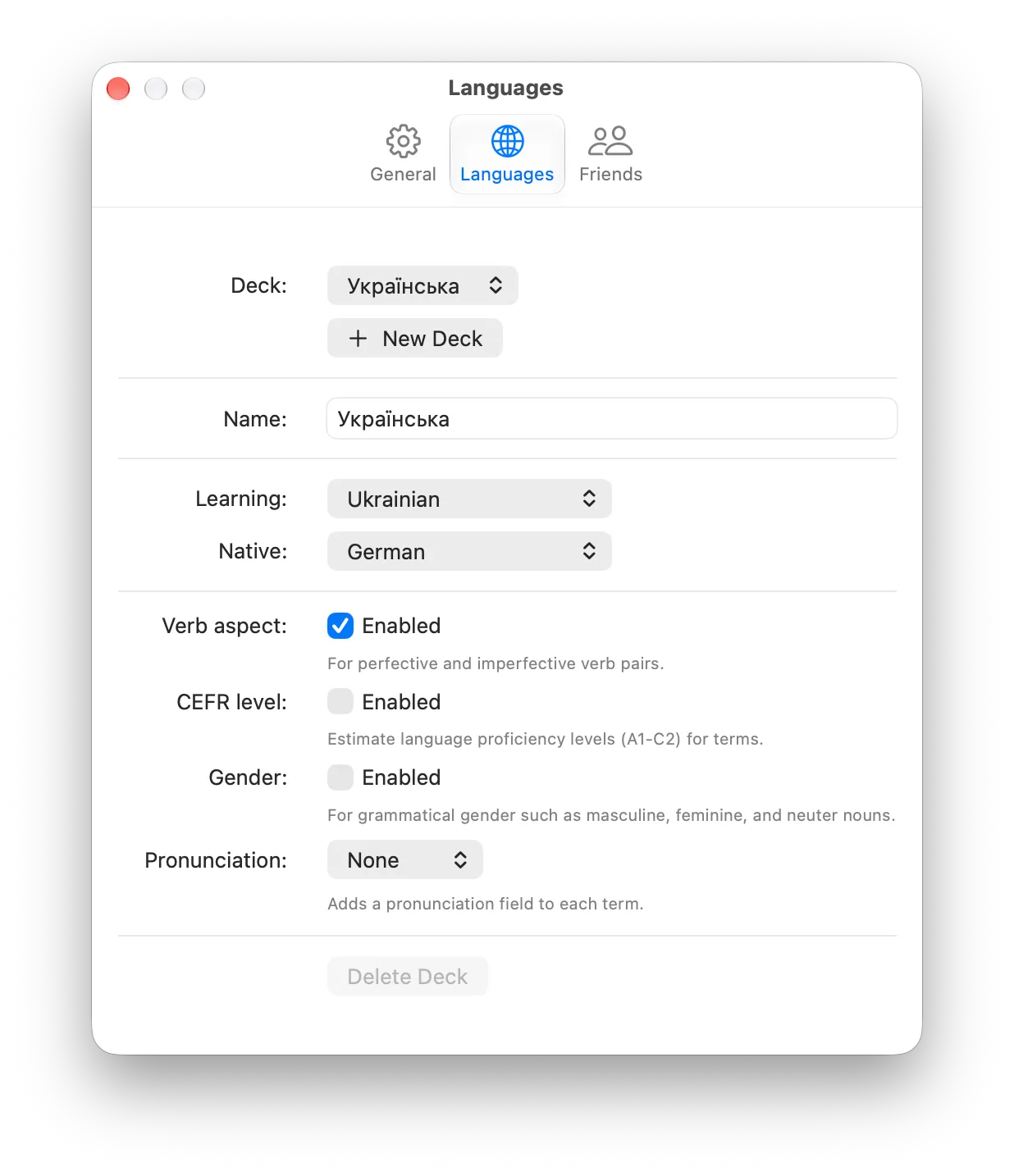
Each deck has its own settings:
- Verb aspect — Adds perfective and imperfective options for verbs. Slavic languages use this.
- CEFR level — Adds an A1–C2 field to each term. You can set the level yourself. You can also let AI estimate it.
- Pronunciation — Adds a pronunciation field to each term. Choose General, IPA, Pinyin, or Romaji.
When you delete a deck, Fluent also deletes all terms in that deck.
Supported Languages
You can use these languages as the language you learn or the language you speak:
- Chinese (Simplified)
- Chinese (Traditional)
- Czech
- Danish
- Dutch
- English
- French
- German
- Greek
- Hindi
- Italian
- Japanese
- Korean
- Norwegian
- Polish
- Portuguese
- Russian
- Spanish
- Swedish
- Turkish
- Ukrainian
Your language is not in the list? Contact me. I can add it.
Adding Terms
To add a term to the active deck, press ⌘ + N. You can also select Dictionary › New Term, or select the + button in the Terms list.
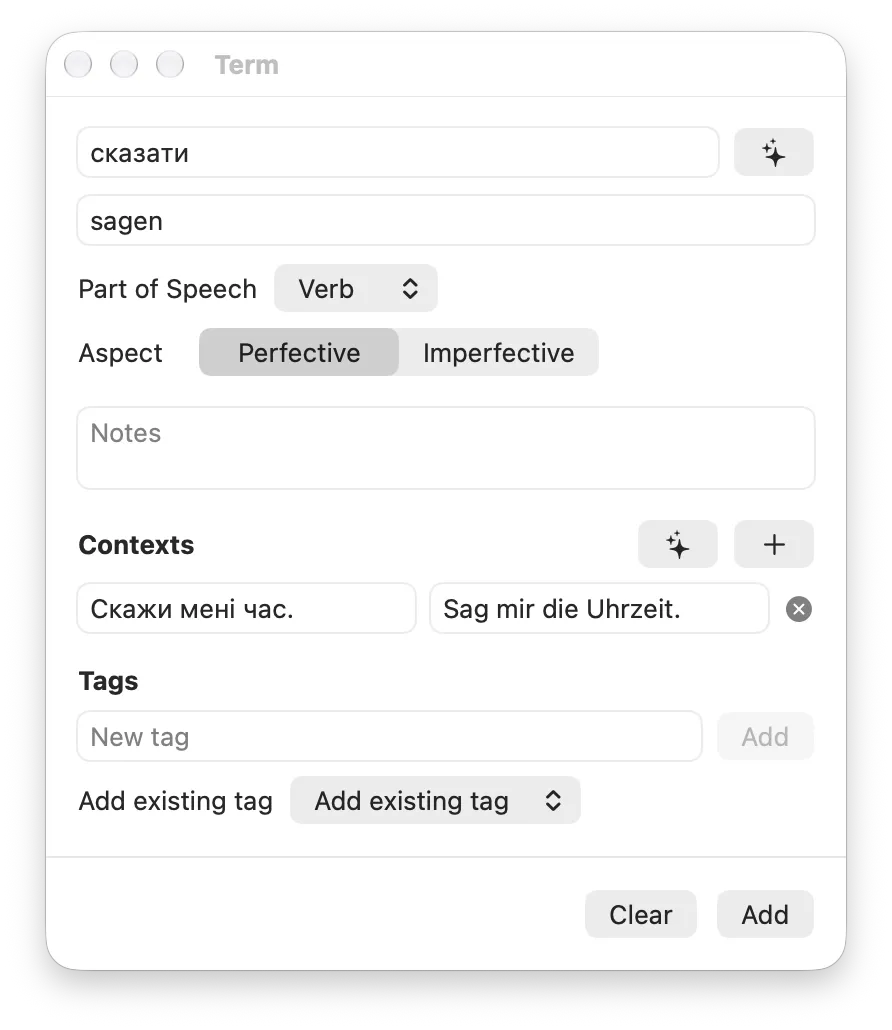
A term has these fields:
- Term — The word or phrase you want to learn.
- Translation — The meaning in the language you speak. A term can have more than one answer. Separate the answers with a comma, a semicolon, or a slash. Fluent accepts each of them as a correct answer.
- Part of speech — For example, noun, verb, or adjective.
- Gender, verb aspect, CEFR level, and pronunciation — Fluent shows these fields only when you turn them on for the deck.
- Contexts — Example sentences with their translations. Each context needs a sentence and a translation.
- Tags — Groups for your terms. For example, “verbs” or “travel”.
- Notes — Your own notes about the term.
Each term must be unique in a deck. If the term is already in the deck, Fluent shows a message.
To save the term, press ⌘ + Return.
AI Assistance
AI assistance needs macOS 27.0 or later.
Fluent can help you fill out data for the terms you add. It can suggest:
- A translation.
- Grammar details, such as gender and verb aspect.
- A pronunciation.
- A CEFR level.
- Example sentences for the contexts.
To get a suggestion, select the sparkle button when you add or edit a term. Always check the suggestion before you save it. Remember, AI can make mistakes.
Privacy
Fluent uses Apple’s Private Cloud Compute for AI. Apple designed it to keep your data private. Apple servers use your data only to answer your request. Then they delete it. Fluent does not use other AI services. Apple’s Privacy Policy applies.
What Fluent Sends
When you ask for a suggestion, Fluent sends the term and the languages of the deck. To make example sentences, Fluent also sends the translation. When you use Capture Vocabulary, Fluent sends the word and the sentence around it. Fluent does not send the image of your screen. It reads the text on your Mac.
Limits
Your iCloud subscription sets the usage limits. When you reach a limit, Fluent shows when you can try again.
Capture Vocabulary
Capture Vocabulary needs macOS 27.0 or later.
You can add words from anywhere on your screen. For example, you can add words from a video, a PDF, or a website.
- Press ⌘ + ⌥ + F. You can also select Dictionary › Capture Vocabulary.
- Select the area of the screen that has the text.
- Click the word you want to look up.
- Select Add to save the term. Select Edit to change it first.
Fluent reads the text in the area on your Mac. Then it uses AI assistance to look up the word. Fluent sends only the word and the sentence around it. Fluent does not send or save the screenshot anywhere.
The first time you capture, macOS asks you to let Fluent record your screen. Fluent uses this only to read the area you select. Capture does not work if you do not allow it.
Fluent finds no text? Zoom in on the page and try again. If a word is already in your deck, Fluent shows Already in Dictionary.
Reviewing Terms
To review the terms that are due today, select Due in the sidebar. You can also press ⌘ + R.
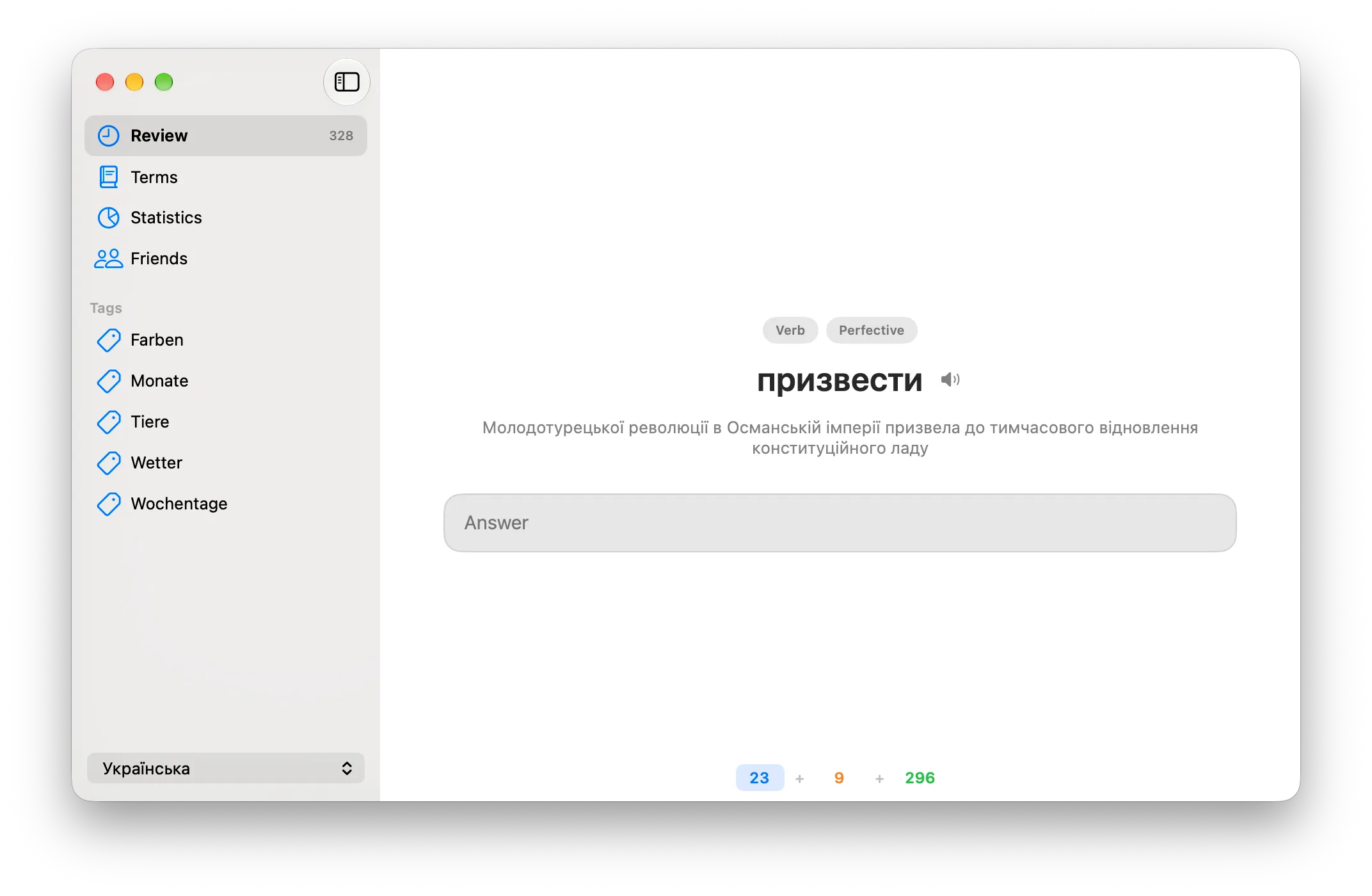
Fluent shows a term in one language. You type the answer in the other language. Fluent reviews each term in both directions. One direction is from the language you learn to the language you speak. The other direction is the reverse.
After you answer, Fluent shows if your answer is correct. If your answer is not correct, Fluent shows the difference between your answer and the correct answer. Fluent also shows the contexts of the term.
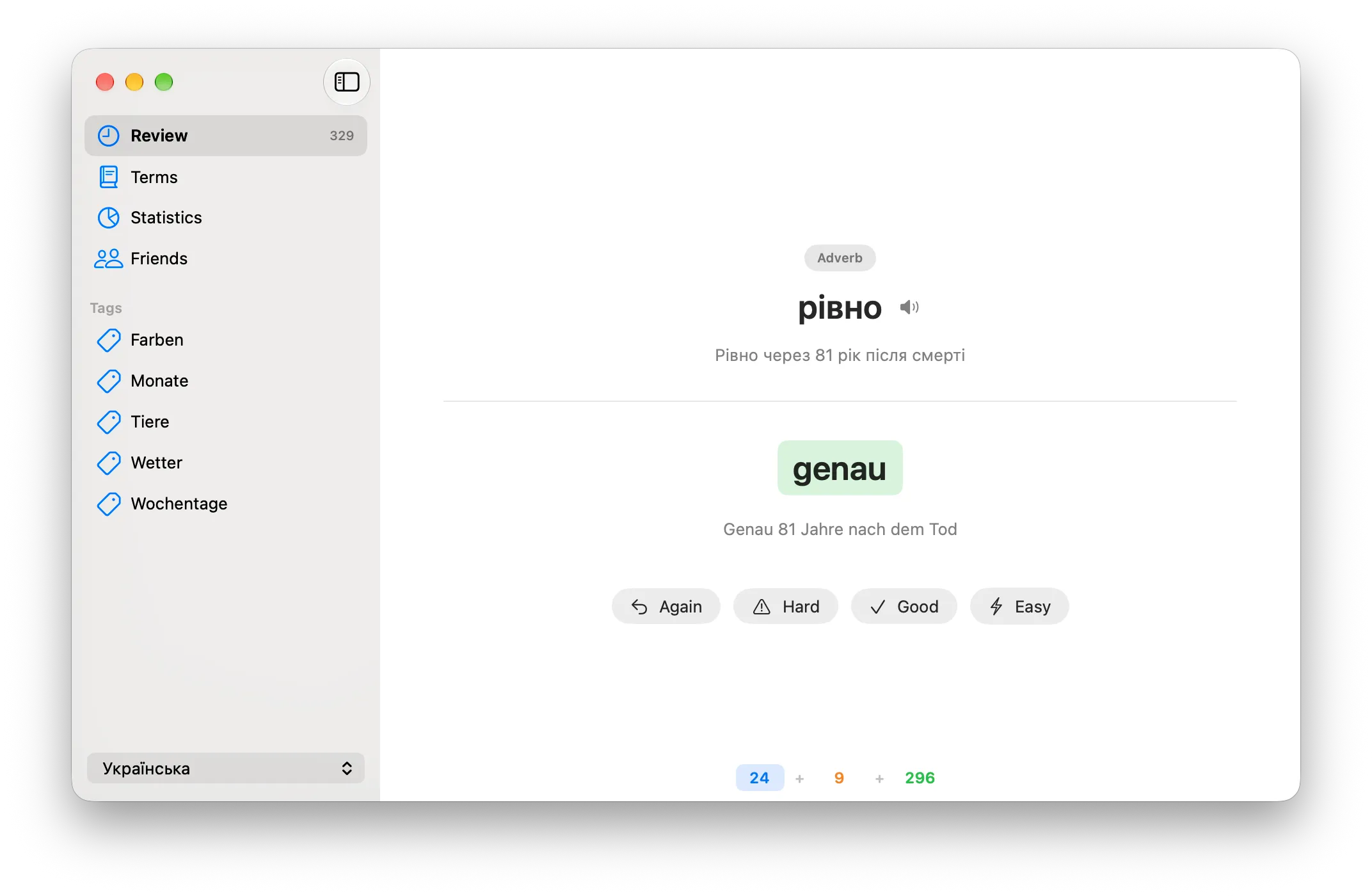
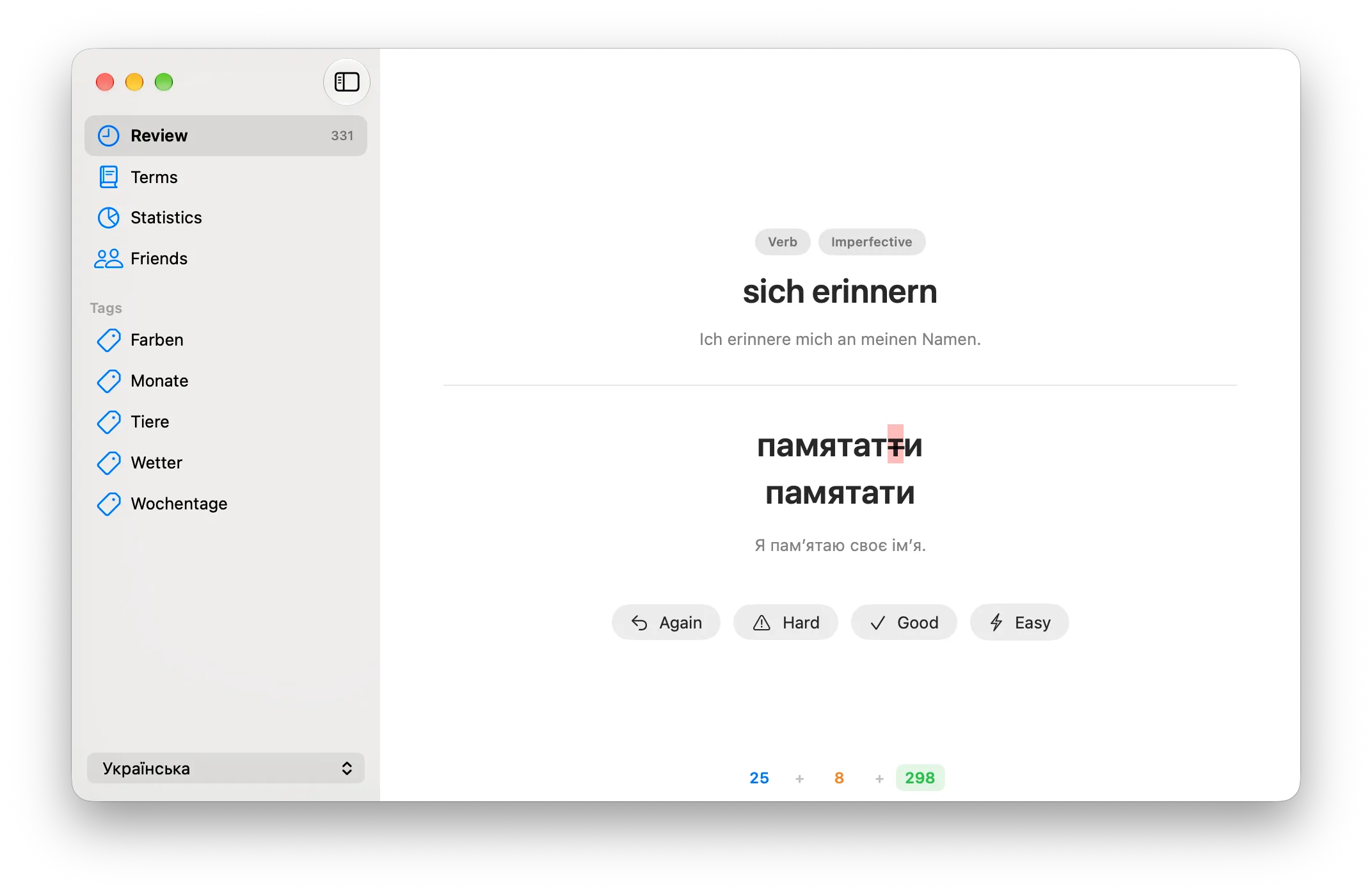
Then rate how well you remembered the term:
| Rating | Key |
|---|---|
| Again | 1 |
| Hard | 2 |
| Good | 3 |
| Easy | 4 |
Fluent uses FSRS to decide when to show the term again. Each direction has its own schedule.
During a review:
- To edit the term, press E after you answer.
- To hear the prompt, press ⌃ + A.
Keyboard Switching
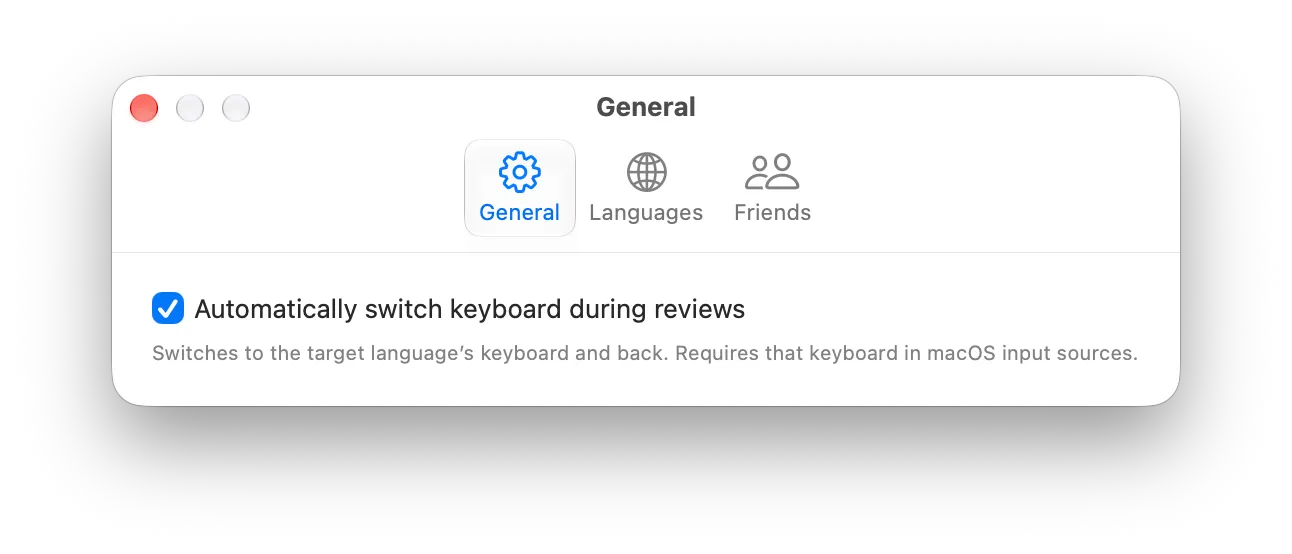
Your language can use a different keyboard. Then turn on automatic keyboard switching in Fluent › Settings › General. When you type an answer, Fluent changes to the keyboard of the language you learn. After the answer, Fluent changes back. Add the keyboard to the input sources in macOS first.
Review a Selection
You do not need to wait until terms are due. Right click one or more terms in the Terms list. Then select Review. To review a group of terms, right click a tag in the sidebar and start a review.
This review is for practice. To end it, select the close button in the toolbar.
Managing Terms
To see all terms in your deck, select Terms in the sidebar. You can also press ⌘ + 1.
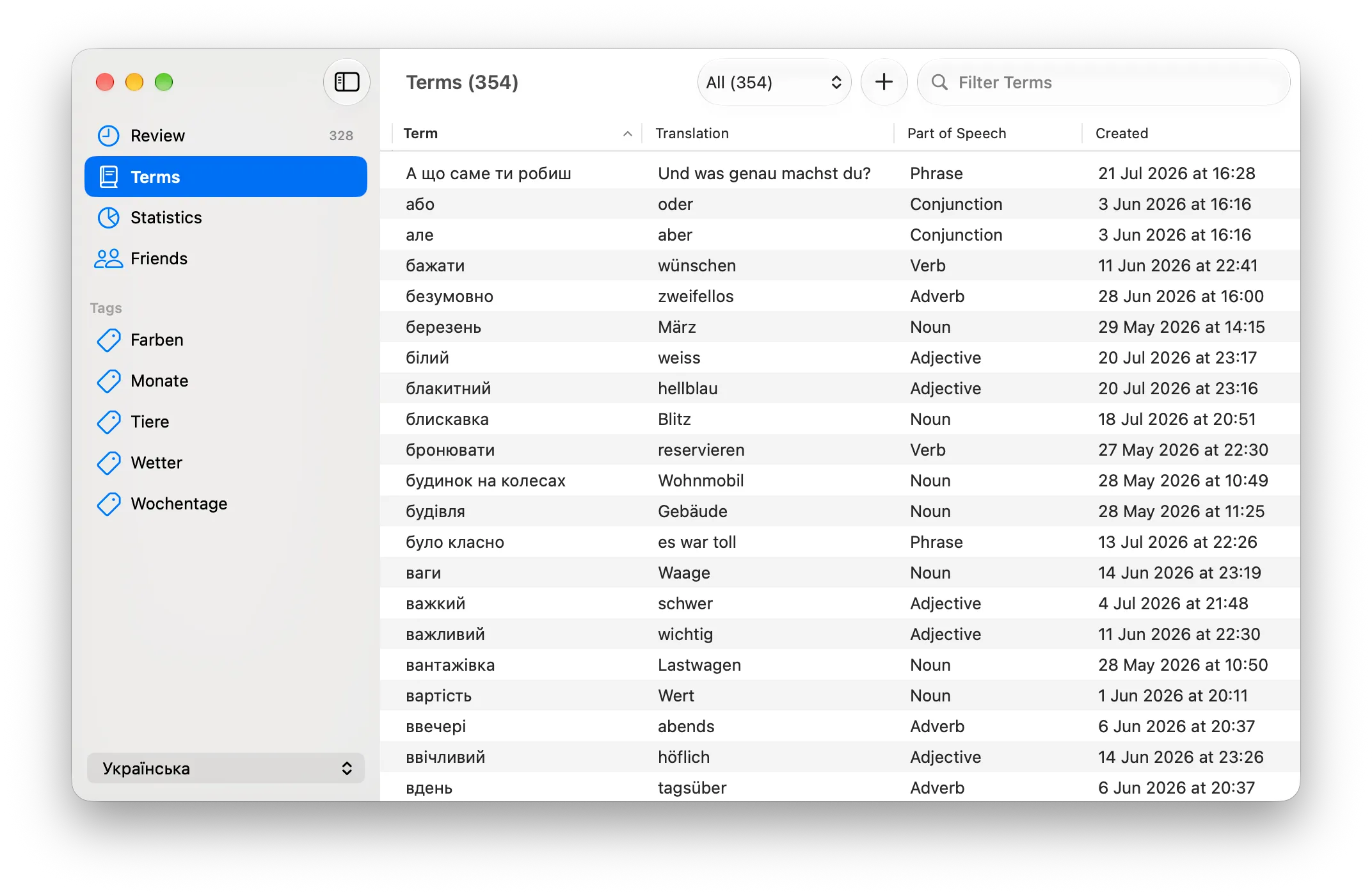
- To sort the list, click a column header.
- To show only one part of speech, use the filter in the toolbar.
- To show only the terms with one tag, select the tag in the sidebar.
- To review, edit, or delete a term, right click it. You can select more than one term.
- To make a term new again, select Forget in the same menu. This resets the progress of the term.
Make a backup from time to time. See Backup and Restore.
Statistics
To see your progress, select Statistics in the sidebar.
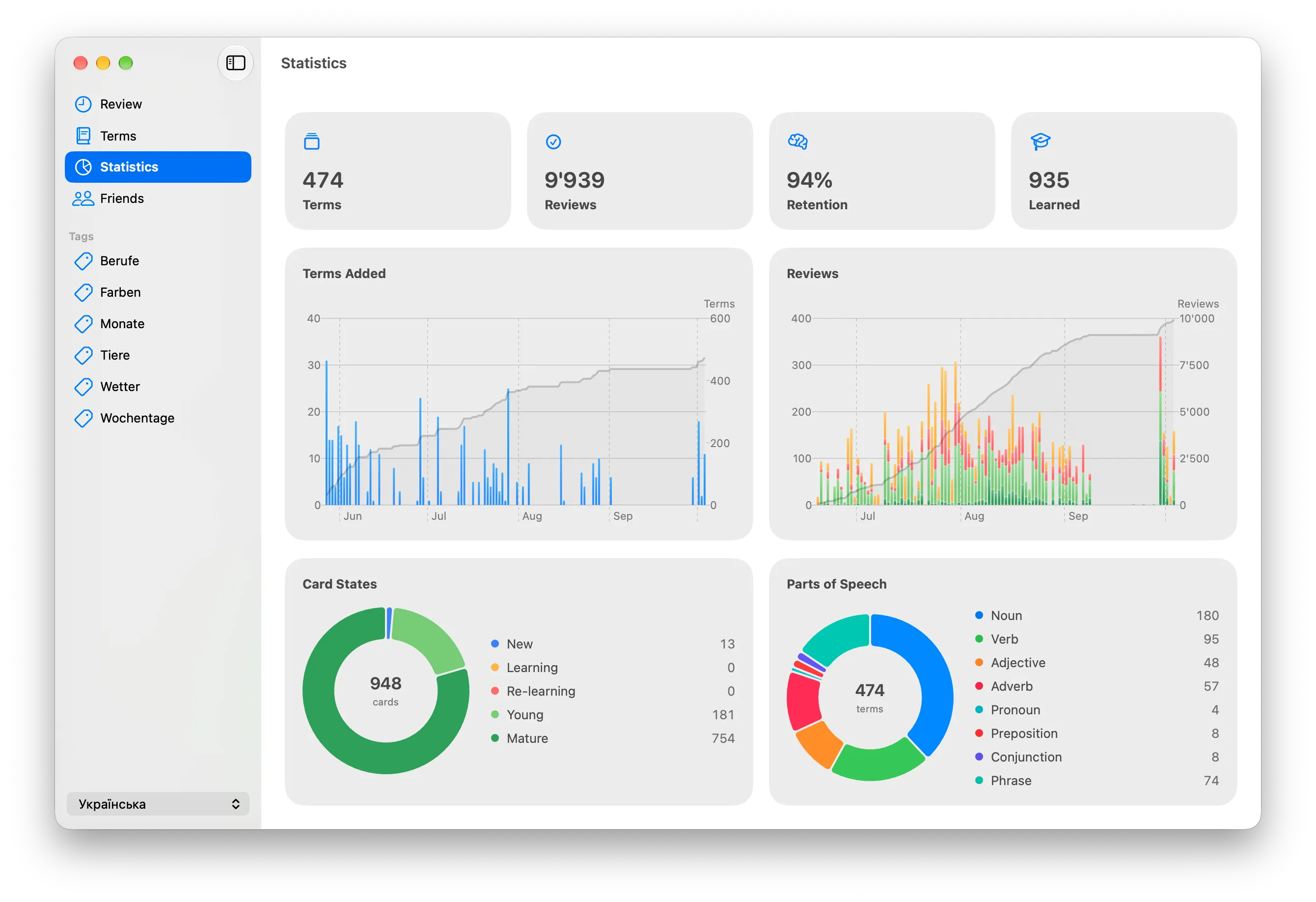
Statistics show:
- The total number of terms and reviews.
- The reviews and the added terms for each day.
- Retention. This is the part of your reviews that you answered correctly.
- The cards for each FSRS state: new, learning, re-learning, young, and mature.
- The terms for each part of speech.
- The terms for each CEFR level, if you use it.
Statistics are empty until you add your first terms.
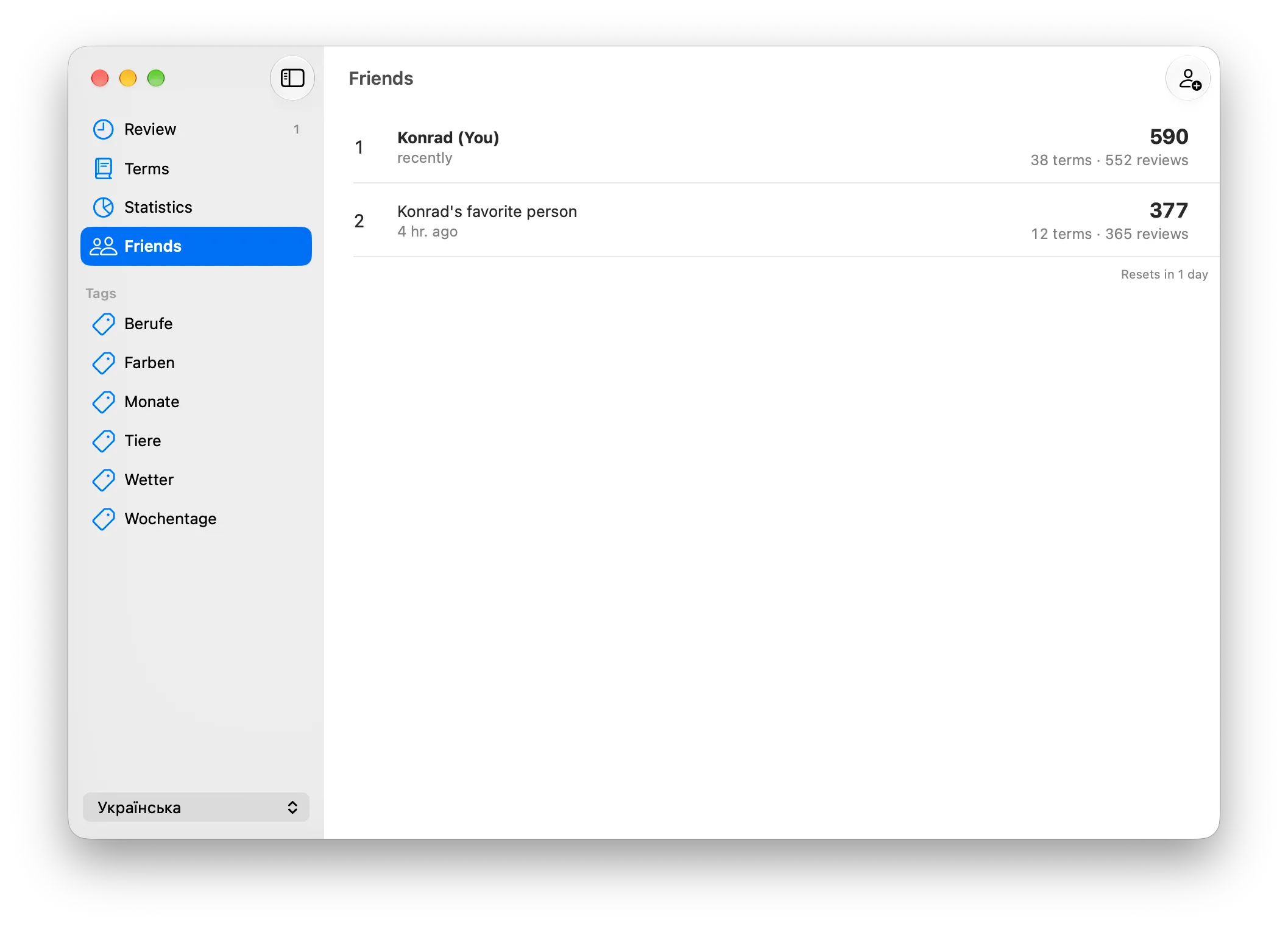
Friends
With Friends, you can share your score privately with friends through iCloud. Your score is the number of terms you add plus the reviews you complete.
Scores reset at midnight UTC.
Fluent never shares your terms or your review history with your friends.
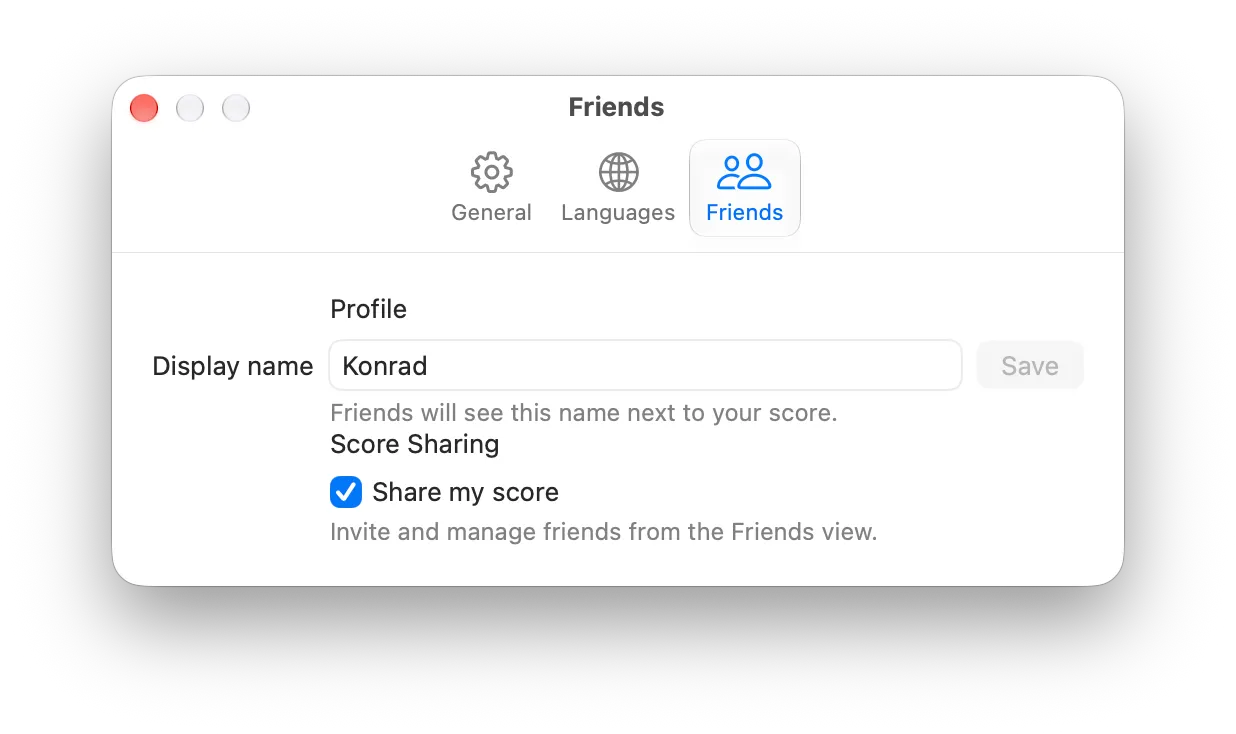
To change your name or to stop sharing your score, open Fluent › Settings › Friends.
Backup and Restore
Fluent syncs your dictionary with iCloud. You can also make your own backup.
- Dictionary › Backup… (⌘ + E) saves your decks and terms to a JSON file.
- Dictionary › Restore… (⇧ + ⌘ + O) loads a backup file.
A restore replaces all decks, terms, and review history that you have now.
Keyboard Shortcuts
| Action | Shortcut |
|---|---|
| New term | ⌘ + N |
| Save term | ⌘ + Return |
| Capture vocabulary | ⌘ + ⌥ + F |
| Review due terms | ⌘ + R |
| Show all terms | ⌘ + 1 |
| Rate: Again, Hard, Good, Easy | 1, 2, 3, 4 |
| Edit term during review | E |
| Speak review prompt | ⌃ + A |
| Backup | ⌘ + E |
| Restore | ⇧ + ⌘ + O |
| Settings | ⌘ + , |
Troubleshooting
Capture vocabulary does not work. Make sure you created a deck. Then let Fluent record your screen in System Settings › Privacy & Security › Screen Recording.
The capture shortcut does not work. Another app can use ⌘ + ⌥ + F. Free the shortcut in System Settings. Then restart Fluent.
AI suggestions fail. Make sure you use macOS 27.0 or later. You can also reach the usage limit of your iCloud plan. Try again later.
Fluent cannot save a term. A term must be unique in a deck. A term also needs a translation.
Contact
When you contact me about an idea or a problem, include:
- Your macOS version.
- Your Fluent version.
- What you expected to happen.
- The steps to cause the problem again.